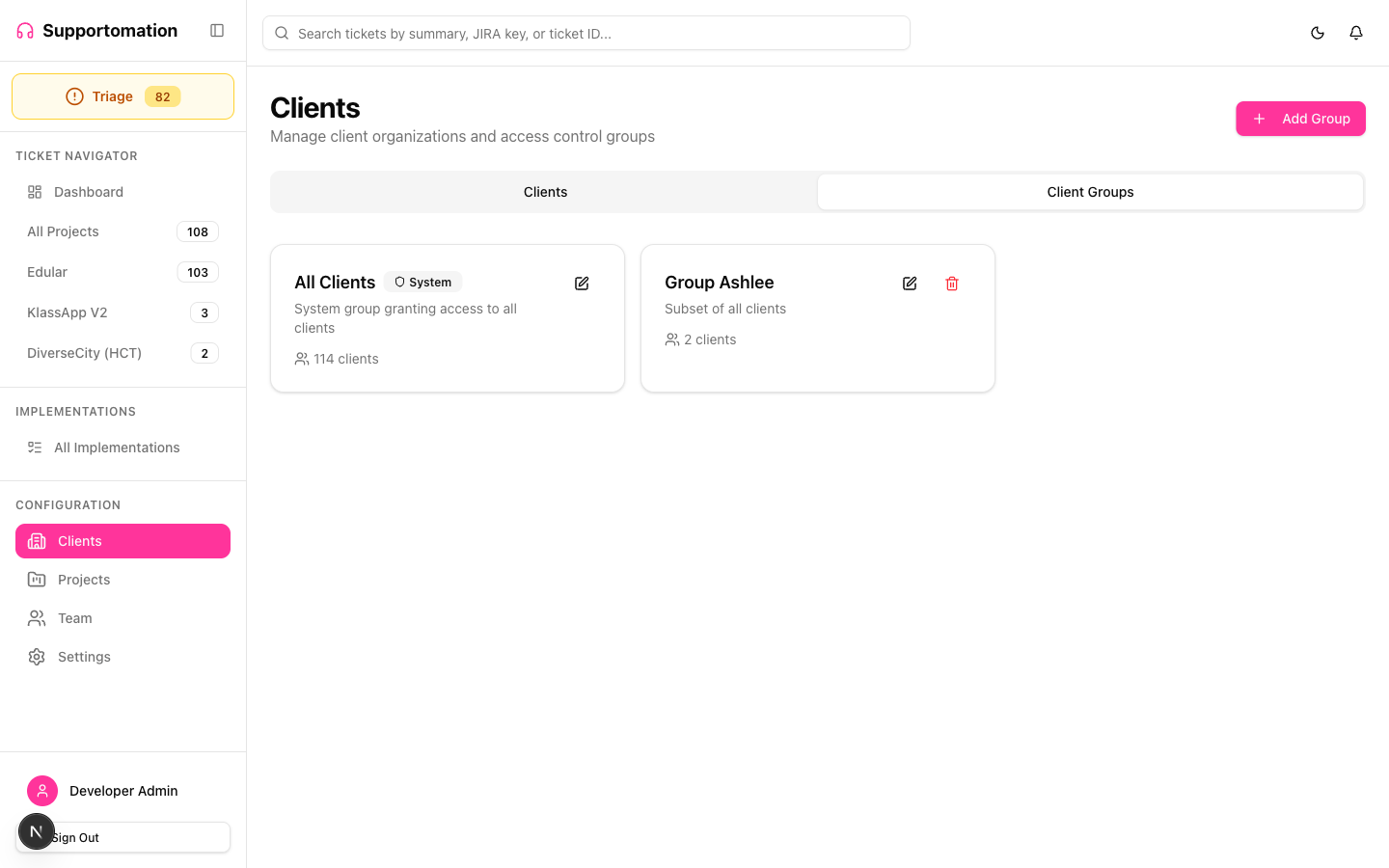
Client Groups
Client Groups control which clients’ tickets each team member can see. By organizing clients into groups and assigning team members to those groups, you determine the scope of visibility across the system. A team member only sees tickets from clients in their assigned groups.
Role Access Admin can create, edit, and delete client groups, and assign clients and team members to groups. Lead and Member can view the groups list.
Getting There
- Click Clients in the sidebar
- Select the Groups tab
How Client Groups Work
Client Groups act as an access control layer between team members and client tickets:
- Clients are added to one or more groups
- Team members are assigned to one or more groups (via the Team Members edit form)
- A team member can only see tickets from clients that belong to their assigned groups
This filtering applies throughout the entire system — the ticket list, dashboard stats, triage view, search results, and workload counts all respect group access.
The “All Clients” System Group
Every Supportomation instance has a built-in system group called All Clients:
| Property | Detail |
|---|---|
| Name | All Clients |
| Type | System group (isSystemGroup = true) |
| Deletable | No — this group cannot be deleted or renamed |
| Effect | Team members assigned to this group can see tickets from every client in the system |
Assign team members to the All Clients group when they need unrestricted visibility. This is typical for Admins and senior Leads who manage tickets across the entire organization.
Creating a Custom Group
Custom groups let you segment client access for teams that only handle specific clients:
- On the Groups tab, click Add Group
- Enter a descriptive name for the group (e.g., “Enterprise Clients”, “LATAM Region”, “Partner Accounts”)
- Select the clients that belong to this group
- Click Save
After creating the group, assign team members to it through the Team Members edit form.
Assigning Clients to a Group
- Open the group you want to edit
- Add or remove clients from the group’s client list
- Click Save
A client can belong to multiple groups. Adding a client to a new group does not remove it from any existing groups.
Assigning Team Members to Groups
Team members are assigned to groups through their own edit form, not through the group itself:
- Navigate to Team in the sidebar
- Open the team member you want to configure
- In the Client Groups section, select the groups this member should have access to
- Click Save
The member’s ticket visibility updates immediately. They will only see tickets from clients in their assigned groups across all views.
How Groups Filter the System
Group access is enforced consistently across every part of Supportomation:
| Area | Filtering Behavior |
|---|---|
| Ticket List | Only tickets from clients in the member’s groups appear |
| Dashboard | Stats cards and recent tickets reflect only accessible clients |
| Triage | Only triage tickets from accessible clients are shown |
| Search | Results are limited to tickets from accessible clients |
| Workload | Ticket counts reflect only accessible client tickets |
| Client List | Members see only clients in their assigned groups |
Example Setup
Consider a support team split by region:
| Group | Clients | Team Members |
|---|---|---|
| All Clients | (all) | Sarah (Admin), Mike (Admin) |
| North America | Acme Corp, BigCo, StartupX | James (Lead), Lisa (Lead) |
| Europe | EuroTech, BerlinSoft | Hans (Lead), Marie (Member) |
In this setup:
- Sarah and Mike see all tickets from every client
- James and Lisa only see tickets from Acme Corp, BigCo, and StartupX
- Hans and Marie only see tickets from EuroTech and BerlinSoft
- If a ticket from an unknown domain lands in Triage, only Sarah and Mike (in the All Clients group) can see it
Tips & Troubleshooting
| Issue | Solution |
|---|---|
| Team member cannot see any tickets | They may not be assigned to any Client Group. Edit the member and add them to at least one group. |
| Team member should see all clients | Assign them to the All Clients system group. |
| Cannot delete a group | The All Clients system group cannot be deleted. Custom groups can be deleted if they have no dependent configurations. |
| New client’s tickets are not visible to a team | Add the new client to the relevant group(s). New clients are not automatically added to custom groups. |
| Triage tickets not visible | Triage tickets from unknown domains have no client assigned. Only members in the All Clients group can see unassigned triage tickets. Assign a client to the ticket to make it visible to members in that client’s groups. |
Next Steps
- Team Members — Assign members to groups through the team member edit form
- Client Management — Manage the clients that belong to groups
- Ticket List & Filtering — See how group filtering affects the ticket view
- Triage — Understand how group access interacts with triage tickets