Project Setup
A project in Supportomation ties an email domain to a JIRA project so that incoming support emails are automatically routed, classified by AI, and tracked in the right place. Each project has its own Gmail OAuth connection, JIRA project key, optional Discord notifications, and logo. You can create as many projects as you need — one per client product, team, or email domain.
Role Access Admin only. Admin users can create, edit, and delete projects and manage their integrations. Lead and Member roles can view projects in the sidebar and access tickets within them, but cannot modify project settings.
Getting There
- Click Projects in the sidebar
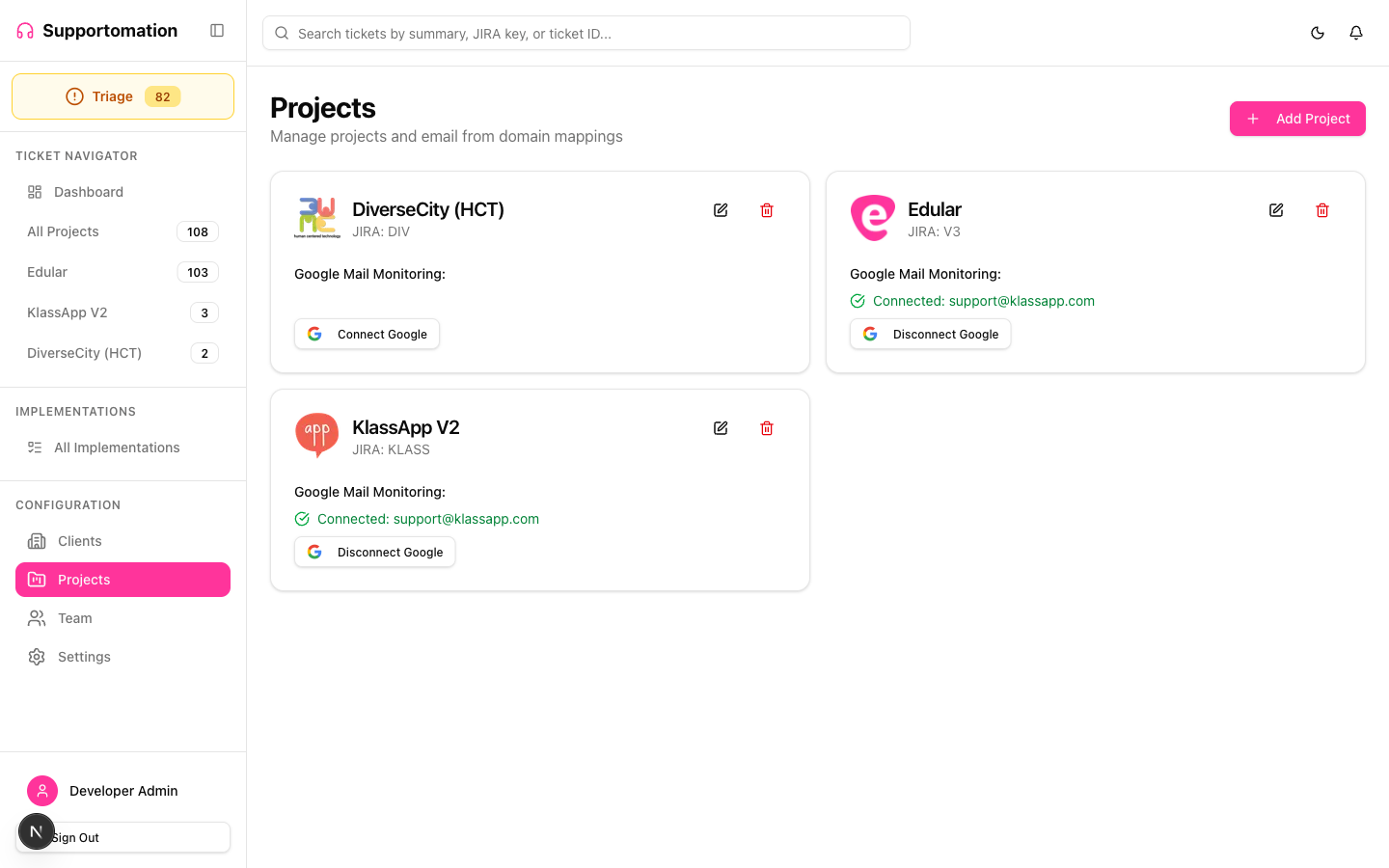
- The project list shows all configured projects, including the system Triage project
What Is a Project?
A project connects three things:
- Email domain — The sender domain (e.g.,
acme.com) that identifies which incoming emails belong to this project - Gmail OAuth — A per-project Google connection that polls for new emails every 10 minutes
- JIRA project key — The JIRA project (e.g.,
ACME) where development tickets are created
When an email arrives from support@acme.com, Supportomation matches the acme.com domain to the project, runs AI analysis, and creates a JIRA ticket under the ACME project key if the issue qualifies.
Creating a Project
- Navigate to Projects and click New Project
- Fill in the project details:
| Field | Description | Required |
|---|---|---|
| Name | A display name for the project (e.g., “Acme Corp”) | Yes |
| Email Domain | The email domain to match incoming emails against (e.g., acme.com) | Yes |
| JIRA Project Key | The key of the JIRA project where development tickets will be created (e.g., ACME) | Yes |
| Logo | An image to identify the project in the sidebar and ticket views | No |
- Click Save to create the project
The project appears in the sidebar immediately. It will not receive emails until you connect Gmail OAuth (see below).
Gmail OAuth Connection
Each project requires its own Gmail OAuth connection to poll for incoming emails. This connection authorizes Supportomation to read emails from a specific Gmail account or Google Workspace mailbox.
Connecting Gmail
- Open the project you want to configure
- In the Gmail OAuth section, click Connect Gmail
- You are redirected to Google’s OAuth consent screen
- Sign in with the Gmail account that receives support emails for this project
- Grant the requested permissions
- You are redirected back to Supportomation with a confirmation message
Once connected, the project status changes to Connected and email polling begins automatically. Supportomation polls every 10 minutes for new messages across all connected projects.
Disconnecting Gmail
To disconnect a project from Gmail, open the project and click Disconnect in the Gmail OAuth section. The project stops polling for emails immediately. Existing tickets are not affected.
Gmail Sync Reset
If emails were missed or you need to re-process messages from a specific date, you can reset the Gmail sync point.
- Open the project
- In the Gmail OAuth section, find the Sync Reset option
- Select the date you want to re-sync from
- Click Reset Sync
Supportomation will re-poll emails starting from the selected date on the next polling cycle. Emails that were already processed are tracked and will not create duplicate tickets — only genuinely missed messages are picked up.
This is useful when:
- Gmail OAuth was temporarily disconnected and emails arrived during the gap
- You suspect emails were missed due to a connectivity issue
- You need to reprocess emails after correcting a project’s email domain configuration
JIRA Project Key Configuration
The JIRA project key tells Supportomation where to create development tickets. This must match an existing project in your JIRA instance.
- Open the project
- Enter the JIRA Project Key (e.g.,
ACME,SUP,DEV) - Save the project
When the AI classifies an email as a development issue with sufficient confidence, Supportomation creates a JIRA ticket under this project key. The JIRA base URL and API credentials are configured globally in Settings, not per-project.
Discord Integration
Discord notifications can be enabled to alert your team when new tickets arrive, tickets are assigned, or JIRA statuses change. Notifications include direct links to JIRA tickets when available.
Discord is configured at the system level through the Discord bot integration. Once the bot is connected, notifications flow for all projects. Per-project Discord channel routing is managed through the bot’s configuration.
The Triage Project
Supportomation includes a special system project called Triage. You cannot delete or rename it.
| Behavior | Description |
|---|---|
| Catches unknown domains | When an email arrives from a domain that does not match any configured project, the ticket lands in Triage |
| Always visible | Triage appears at the top of the sidebar with a count of tickets needing attention |
| Cannot be deleted | The system project flag (isSystemProject) protects it from removal |
| No Gmail OAuth | Triage does not have its own Gmail connection — it receives overflow from other projects |
Tickets in Triage are waiting for someone to identify the correct client and project. Once a client is assigned, the ticket automatically moves to that client’s project.
For a full guide to working with triage tickets, see Triage.
Project Logo
Each project can have a logo image that appears in the sidebar and on ticket cards for quick visual identification.
- Open the project
- Click the logo area or Upload Logo
- Select an image file
- Save the project
The logo helps team members quickly distinguish between projects when scanning the sidebar or ticket lists.
Tips & Troubleshooting
| Issue | Solution |
|---|---|
| Emails not arriving for a project | Verify that Gmail OAuth shows Connected. If disconnected, reconnect and consider a sync reset from the date emails stopped. |
| Emails landing in Triage instead of the correct project | Check that the sender’s email domain exactly matches the project’s configured Email Domain. Domain matching is case-insensitive but must be an exact domain match. |
| JIRA tickets not being created | Confirm the JIRA Project Key matches a real project in your JIRA instance. Also verify that global JIRA credentials are configured in Settings. |
| Duplicate tickets after sync reset | This should not happen. Supportomation tracks processed Gmail message IDs and skips already-processed emails. If duplicates appear, contact your administrator. |
| Cannot delete the Triage project | Triage is a protected system project and cannot be deleted. This is by design. |
| Gmail OAuth redirect fails | Ensure your browser allows popups from Supportomation. Also verify that the Google OAuth redirect URI is correctly configured in your environment. |
| Project not showing in sidebar | After creating a project, refresh the page if it does not appear. The sidebar updates in real time via Convex subscriptions, but a manual refresh can help in rare cases. |
Next Steps
- Settings — Configure global JIRA credentials, AI thresholds, and email providers
- Triage — Handle tickets that land in the Triage project
- JIRA Integration — How JIRA tickets are created and synced
- Ticket Types — Understand Activity vs Development classification