Triage
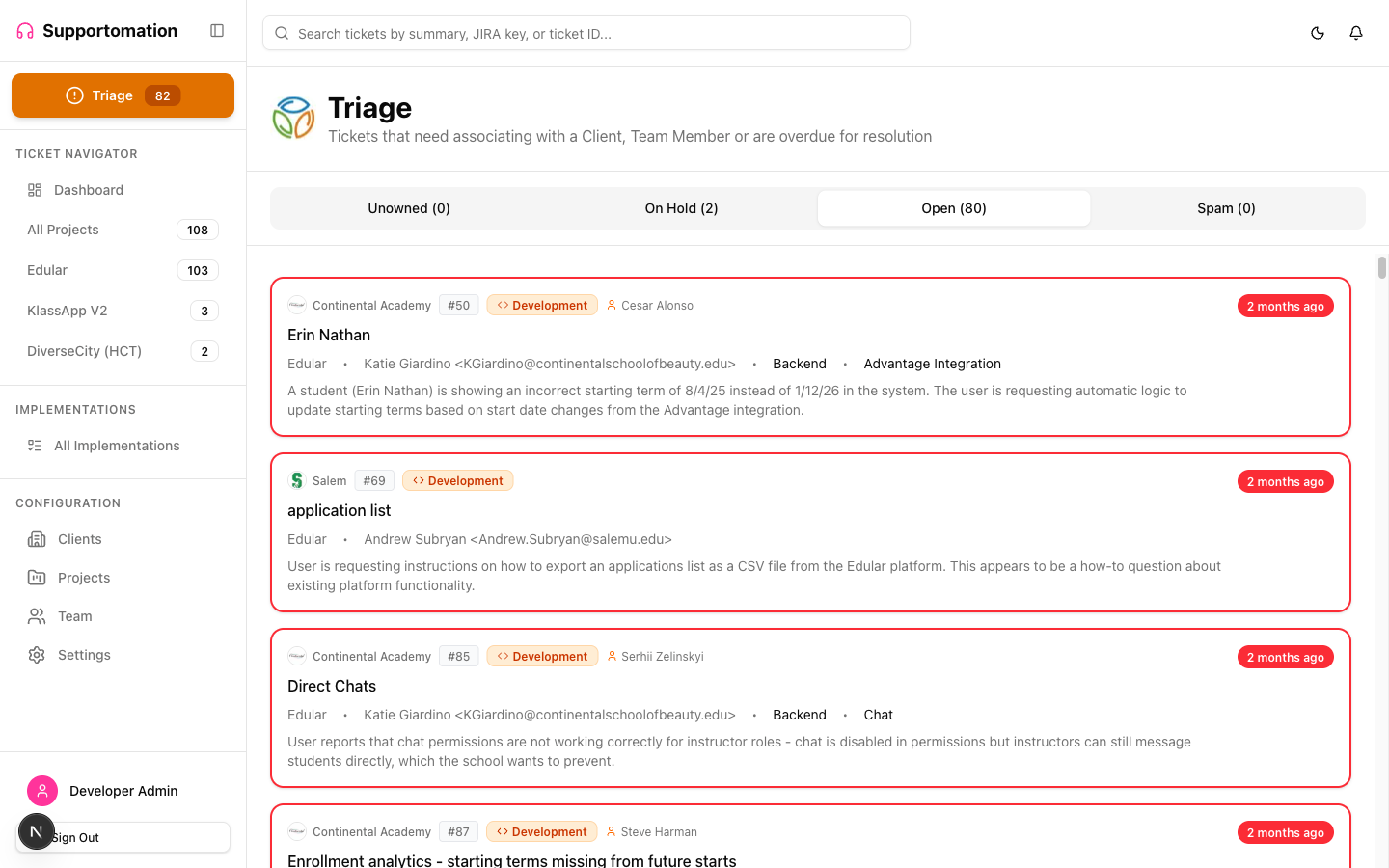
Triage is a special system project that collects tickets needing attention. When an email arrives from an unknown domain that does not match any configured project, the ticket lands in Triage. The triage view also surfaces unassigned tickets, overdue items, and tickets on hold, giving you a single place to handle everything that requires human intervention.
Role Access Admin and Lead can take action on triage tickets (assign clients, claim tickets, manage spam). Member can view the triage list in read-only mode.
Getting There
- Click Triage in the sidebar (listed above the project list)
- The Triage sidebar item shows a count of tickets needing attention
- Click the Unowned stat card on the Dashboard
What Lands in Triage
Tickets appear in Triage for several reasons:
| Reason | Description |
|---|---|
| Unknown email domain | The sender’s email domain does not match any configured project. The ticket has no client or project assignment. |
| No client assigned | The ticket exists but has not been linked to a client record. |
| No support member | The ticket has no support team member assigned (unowned). |
| No developer assigned | A Development ticket has no developer, even if it has a support member. |
| Aged ticket | The ticket has been open longer than the configured threshold without resolution. |
No Client Means No JIRA
When an email does not match any client — a staff forward, an unknown domain — Supportomation deliberately stops short:
- No JIRA issue is raised. Raising one would put it on the polling project’s board, which is rarely the right one
- No developer is auto-assigned
- The ticket is created on hold, in Triage, waiting for a human
Once you assign the client, the ticket moves to that client’s project and you can raise the JIRA issue from the ticket detail page — on the client’s own board.
Triage tickets are excluded from the “All” ticket list, since Triage has its own view, but they are returned by Search.
Triage Tabs
The triage view uses a different set of tabs from the standard ticket list:
| Tab | What It Shows |
|---|---|
| Unowned | Tickets with no support member and no developer assigned. This is the default tab when triage has unowned tickets. |
| On Hold | Tickets that have been placed on hold. This tab only appears when on-hold tickets exist. |
| Open | Triage tickets that have been claimed by a support member but are not yet resolved. |
| Spam | Tickets flagged as spam by AI or manually by a team member. |
When you open Triage, the Unowned tab is selected automatically if it has tickets. Otherwise, the view falls back to the Open tab.
Assigning a Client
The most common triage action is identifying which client a ticket belongs to:
- Open the ticket from the Triage list
- In the right panel, use the Client dropdown to select the correct client
- Click Update Assignment
When you assign a client, the ticket automatically moves to that client’s project. It disappears from Triage and appears under the appropriate project in the sidebar. The project is determined by the client’s configured email domain mapping.
Claiming a Ticket
Unowned tickets need someone to take responsibility:
- On the ticket card in the Triage list, click Claim (Admin and Lead only)
- Confirm the assignment in the dialog
- You are now the support member for that ticket
Alternatively, open the ticket detail and assign yourself (or another team member) using the Support Member dropdown.
Overdue and Aged Tickets
Tickets that remain open beyond the configured age threshold are flagged as overdue:
- Default threshold: 7 days from ticket creation
- Configurable: Admins can change the threshold in Settings under Triage configuration
- Visual indicator: Overdue tickets show a red border and red age text in the ticket list
- Sort order: Within the overdue group, the oldest tickets appear first (most urgent at top)
Supportomation runs a daily check for aged tickets and sends notifications to relevant team members when tickets cross the threshold.
On-Hold Tickets
Tickets can be placed on hold when they are waiting for additional information or should not be actioned yet:
- Automatic hold: Tickets from addresses on a client’s “Always Hold” list are placed on hold automatically, skipping AI analysis entirely. This is useful for automated sender addresses (e.g., monitoring systems, newsletters) that should not generate AI-classified tickets.
- Manual hold: An Admin or Lead can set a ticket’s status to on hold from the ticket detail page.
On-hold tickets appear in the Triage On Hold tab. The tab is hidden when no tickets are on hold.
To resume an on-hold ticket, open it and change the status or assign it to a team member.
Spam in Triage
The Spam tab shows tickets flagged by AI-powered spam detection or manually marked as spam. From this tab you can:
- Review flagged tickets to confirm or dismiss the spam classification
- Restore a ticket that was incorrectly flagged
- Delete confirmed spam tickets (Admin only, with option to delete linked JIRA tickets)
For full details on spam detection, pattern learning, and management, see Spam Detection.
Triage Workflow Summary
A typical triage workflow looks like this:
- Check Triage — Open the Triage view from the sidebar and review unowned tickets
- Identify the client — For tickets from unknown domains, determine which client sent the email and assign them
- Claim the ticket — Assign yourself as the support member
- Classify if needed — If the AI confidence is low, review the classification and change the ticket type if necessary
- Create JIRA if needed — For Development tickets without a JIRA issue, create one manually
- Handle on-hold items — Review the On Hold tab and resume tickets that are ready for action
- Address overdue tickets — Check for tickets approaching or past the age threshold and prioritize them
Tips & Troubleshooting
| Issue | Solution |
|---|---|
| Ticket stays in Triage after assigning a client | The client must be linked to a project with a configured email domain. If the client has no project, the ticket remains in Triage. |
| Too many tickets landing in Triage | Configure email domains for all active projects in the Projects settings. Each domain must be mapped to a project for automatic routing to work. |
| Aged threshold too aggressive or too lenient | Adjust the threshold in Settings under Triage configuration. The default is 7 days. |
| On Hold tab not visible | The tab only appears when at least one ticket is on hold. If no tickets are on hold, the tab is hidden. |
| Forwarded emails landing in Triage | When a team member forwards a client email, it may not match a known domain. Assign the client manually and the ticket moves to the correct project. |
| A Triage ticket seems to have vanished | Triage tickets do not appear in the “All” list. Find them in the Triage view, or search for the ticket number — search covers Triage. |
| No JIRA issue on a Development ticket in Triage | Expected: tickets with no client never raise JIRA automatically. Assign the client, then create the JIRA issue from the ticket detail page. |
| Spam tickets taking up space | Review the Spam tab regularly. Delete confirmed spam to keep Triage clean. Spam patterns are learned over time to reduce future false positives. |
Next Steps
- Ticket List & Filtering — How the standard ticket tabs differ from Triage
- Ticket Types — Understanding Activity vs Development for classification decisions
- JIRA Integration — Creating JIRA tickets for Development items found in Triage
- Search — Find specific tickets within the Triage queue