Implementations Overview
Implementations are Supportomation’s project management feature for tracking client deployment and onboarding work. Each implementation links a specific client to a set of tasks that need to be completed, giving your team a structured way to manage multi-step projects alongside day-to-day support.
Role Access Admin and Lead can create, edit, and manage implementations and their tasks. Member can view implementation progress in read-only mode.
Getting There
- Click Implementations in the sidebar to see the implementation list
- Click New Implementation (or navigate to
/implementations/new) to start the create wizard - Click any implementation in the list to open its detail page
What Is an Implementation?
An implementation represents a body of work for a specific client — for example, deploying a new module, onboarding a client onto a platform feature, or running a custom integration project. Each implementation contains:
- A linked client — the organization the work is for
- A set of tasks — individual work items that need to be completed
- Progress tracking — each task moves through To Do, In Progress, and Done
- Support ticket visibility — related support tickets appear alongside tasks
Implementations exist separately from the support ticket system but complement it. While tickets capture incoming client requests, implementations let you proactively plan and track outbound project work.
Creating a New Implementation
Navigate to Implementations and click New Implementation to open the creation wizard. You have two paths:
From a Template
- Select Create from Template
- Choose a template from the list (organized by category)
- The wizard pre-populates the implementation with the template’s predefined tasks
- Select the client this implementation is for
- Adjust tasks as needed — add, remove, or edit any of the pre-populated tasks
- Click Create to finalize
Templates save time when you repeat similar projects across clients. See Templates & Task Library for details on creating and managing templates.
From Blank
- Select Create Blank
- Enter the implementation name and description
- Select the client this implementation is for
- Add tasks manually
- Click Create to finalize
The Implementation List
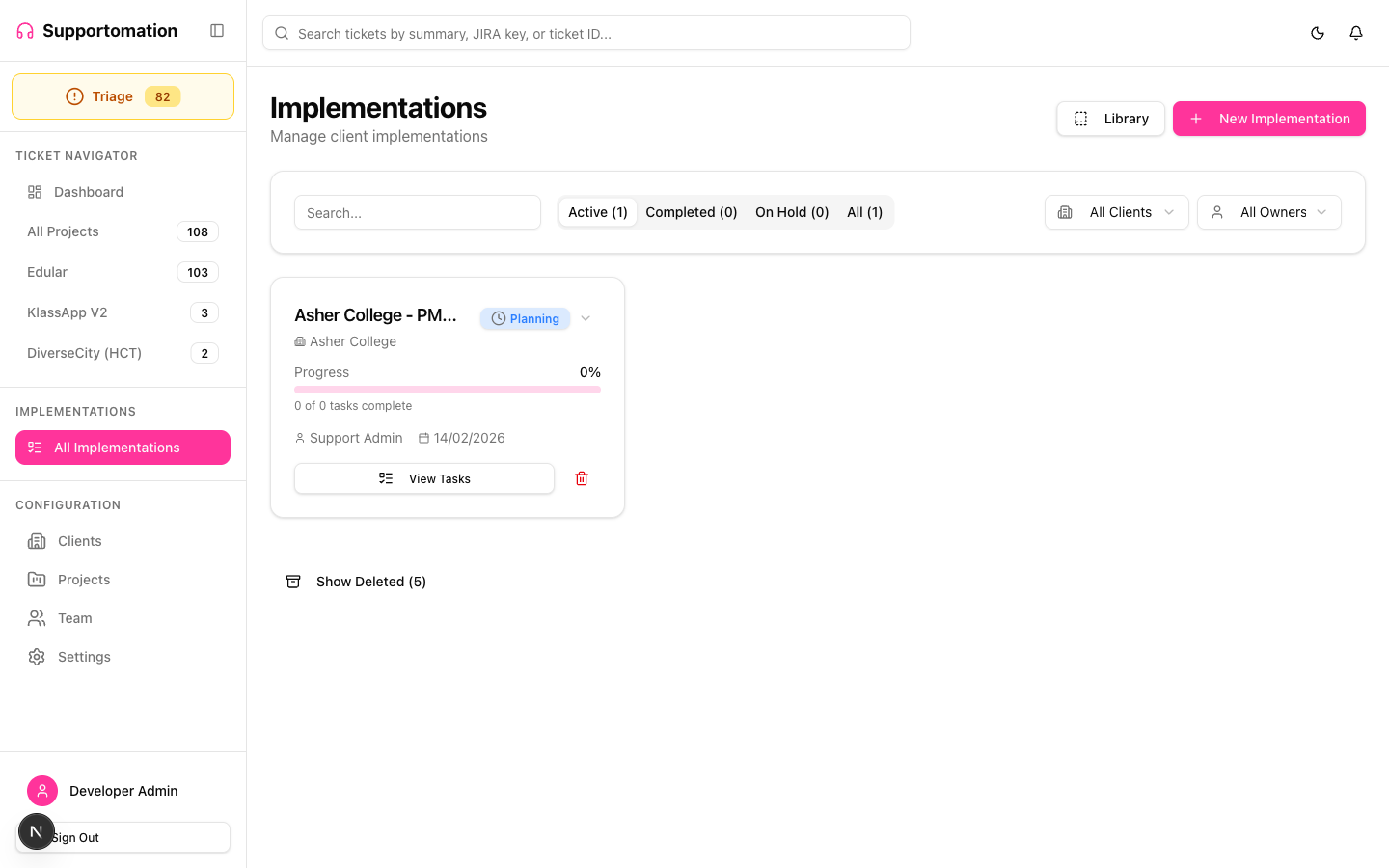
The main Implementations page (/implementations) shows all active implementations. Each card in the list displays:
| Element | Description |
|---|---|
| Implementation name | The title of the project |
| Client | The linked client organization |
| Task progress | A summary of how many tasks are in each state (To Do, In Progress, Done) |
| Created date | When the implementation was created |
Click any implementation to open its detail page with the full task breakdown.
Task Management
Each implementation contains tasks that represent individual work items. Tasks have a straightforward lifecycle:
| Progress | Color | Meaning |
|---|---|---|
| To Do | Gray | Work has not started |
| In Progress | Blue | Work is actively underway |
| Done | Green | Work is complete |
Adding Tasks
From the implementation detail page, Admin and Lead users can:
- Add a task manually — enter a name, description, and any relevant details
- Add from the task library — quickly insert a shared library task (see Templates & Task Library)
Editing and Removing Tasks
Click on any task to edit its details. Tasks can be removed from an implementation without affecting the task library or any templates they may have originated from.
Draft Tasks
When you add tasks to an implementation, they can be created as drafts. Draft tasks behave like regular tasks with one important difference: they do not trigger notifications to team members.
This is useful when you are building out an implementation plan and do not want to alert the team until everything is finalized. When you are ready, enliven the draft tasks to activate them and send any applicable notifications.
| State | Notifications | Visible in Views |
|---|---|---|
| Draft | Suppressed — no notifications sent | Yes, marked as draft |
| Enlivened | Active — notifications sent on creation and updates | Yes, appears as a normal task |
Deleting an Implementation
Implementations use soft delete. When you delete an implementation:
- The implementation and its tasks are hidden from the list and all views
- The data is not permanently destroyed — it is marked with an
isDeletedflag - Soft-deleted implementations do not appear in search results or client summaries
- This approach protects against accidental deletion while keeping the interface clean
Only Admin users can delete implementations.
Support Ticket Integration
Implementations display related support tickets alongside their tasks. When a client has both an active implementation and incoming support tickets, you can see both in one place. This helps your team understand the full picture of a client engagement without switching between the ticket list and the implementation detail.
See Implementation Views for details on how support tickets appear in each view.
Tips & Troubleshooting
| Issue | Solution |
|---|---|
| Cannot create a new implementation | Verify you have the Admin or Lead role. Members have read-only access. |
| Client not appearing in the create wizard | The client must exist in the Clients list before it can be linked to an implementation. Add the client first under Clients. |
| Tasks from a template are not quite right | After creating from a template, you can freely edit, add, or remove any tasks. The template is a starting point, not a constraint. |
| Deleted implementation still showing | Refresh the page. Soft-deleted implementations should disappear from all views immediately, but the UI may need a moment. |
| Draft tasks triggered notifications | Ensure the tasks are still in draft state. Once a task is enlivened, notifications are sent. There is no way to return an enlivened task to draft. |
| Want to re-use tasks across implementations | Add common tasks to the Task Library so they can be quickly inserted into any implementation. See Templates & Task Library. |
Next Steps
- Implementation Views — List, Timeline, and Kanban views for managing tasks
- Templates & Task Library — Create reusable templates and shared tasks
- Roles & Permissions — Who can manage implementations
- Ticket List — The support ticket side of client management