Implementation Views
Every implementation detail page offers three views for managing tasks: List, Timeline, and Kanban. Each view shows the same underlying tasks but presents them differently to suit different workflows. All three views also include a Support Tickets column that surfaces related client tickets alongside your implementation work.
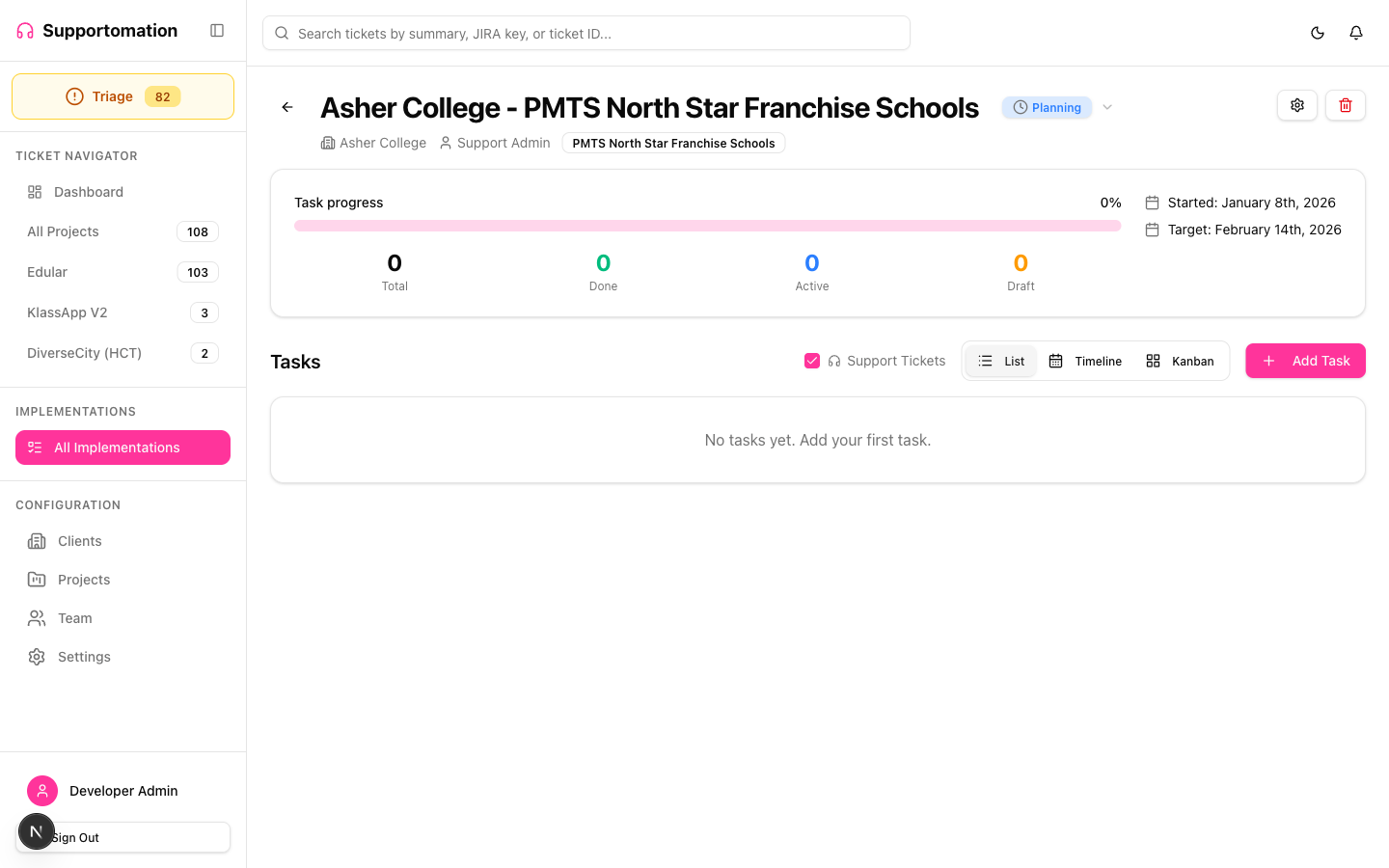
Role Access Admin and Lead can interact with tasks in all views (edit, drag, update progress). Member can view all three views in read-only mode.
Getting There
- Open any implementation from the Implementations list
- The detail page loads with your most recently used view
- Use the view switcher in the top-right corner of the task area to toggle between List, Timeline, and Kanban
Switching Between Views
The view switcher displays three icons (or labels) representing each view mode. Click one to switch. Your current view selection persists for that implementation, so you return to the same view when you reopen the page.
All views share the same task data. Changes made in one view — such as updating a task’s progress or editing its details — are immediately reflected in all others.
List View
The List view presents tasks as a vertical table or card list, giving you a straightforward way to see everything at a glance.
What You See
| Column | Description |
|---|---|
| Task name | The title of the task |
| Progress | Current state indicator — To Do (gray), In Progress (blue), or Done (green) |
| Description | Summary of the task, if provided |
| Details | Additional context such as assignee or dates |
Working in List View
- Sort tasks by progress, name, or creation order
- Filter tasks to show only a specific progress state
- Click a task to open it for editing (Admin and Lead)
- Update progress directly from the list using the progress control on each task
List view works well for reviewing all tasks in an implementation quickly and for bulk status assessment.
Timeline View
The Timeline view arranges tasks along a visual timeline, making it easy to understand the schedule and sequencing of work.
What You See
Tasks are displayed as bars or markers on a horizontal timeline. The position and span of each task reflects its dates (if assigned). Color coding matches the standard progress colors:
| Progress | Timeline Color | Meaning |
|---|---|---|
| To Do | Gray | Work has not started |
| In Progress | Blue | Work is actively underway |
| Done | Green | Work is complete |
Working in Timeline View
- View the schedule of tasks relative to each other
- Identify gaps or overlaps in the implementation plan
- Click a task on the timeline to open its detail view for editing
- Scroll horizontally to move through the timeline
Timeline view is most useful when your implementation tasks have dates assigned and you need to understand the sequence and duration of work across the project.
Kanban View
The Kanban view organizes tasks into columns by their progress state, providing a drag-and-drop board for visual task management. The board is powered by the dnd-kit library for smooth, accessible drag interactions.
Columns
The Kanban board has three columns that correspond to the task progress states:
| Column | Progress State | Color |
|---|---|---|
| To Do | todo | Gray header |
| In Progress | in_progress | Blue header |
| Done | done | Green header |
Each column shows a count of the tasks it contains.
Drag and Drop
To change a task’s progress:
- Click and hold a task card in any column
- Drag it to the target column
- Release to drop it in place
The task’s progress updates immediately when you drop it. This change is saved to the database in real time and is reflected across all views.
Working in Kanban View
- Drag tasks between columns to update progress without opening each task
- Click a task card to view or edit its full details
- Scan column counts to quickly assess how much work is in each state
- Reorder tasks within a column by dragging them to a different position
Kanban view is ideal for daily standups, sprint planning, or any workflow where you want to move tasks through stages visually.
Support Tickets Column
All three views include a Support Tickets section that shows support tickets related to the implementation’s client. This gives you side-by-side visibility into both planned project work and incoming client requests.
What Appears
Support tickets are shown when the implementation’s linked client has active tickets in the system. Each support ticket entry displays:
| Element | Description |
|---|---|
| Ticket number | The ticket reference (e.g., #42) |
| Subject | The ticket subject line |
| Type badge | Blue for Activity, Orange for Development |
| Status | Current ticket status |
Why This Matters
When managing a client implementation, you often need to know about ongoing support conversations. For example:
- A client reports a bug during an implementation rollout — the support ticket appears alongside the implementation tasks
- A question ticket may relate to a feature being implemented — the team can see both without switching pages
- Completed support tickets provide context about past issues that might affect current implementation work
The support tickets section is read-only within the implementation view. Click a ticket to navigate to its full Ticket Detail page.
Progress Tracking
Across all three views, task progress uses a consistent color system:
| Progress | Color | Visual |
|---|---|---|
| To Do | Gray | Gray badge, gray timeline bar, gray Kanban column |
| In Progress | Blue | Blue badge, blue timeline bar, blue Kanban column |
| Done | Green | Green badge, green timeline bar, green Kanban column |
You can update a task’s progress from any view:
- List view — Use the progress control on the task row
- Timeline view — Click the task and update in the detail panel
- Kanban view — Drag the task card to a different column
Tips & Troubleshooting
| Issue | Solution |
|---|---|
| Cannot drag tasks in Kanban view | Verify you have the Admin or Lead role. Member accounts have read-only access and cannot drag tasks. |
| Drag and drop feels unresponsive | Ensure you click and hold the task card for a moment before dragging. The drag interaction requires a brief press-and-hold to distinguish from a regular click. |
| Tasks are not showing on the Timeline | Timeline view relies on tasks having date information. Tasks without dates may appear in a separate section or not be plotted on the timeline. |
| Support tickets not appearing | The support tickets section shows tickets for the implementation’s linked client. If the client has no active tickets, this section will be empty. |
| Progress update did not save | Progress changes save in real time. If the change appears to revert, check your network connection and refresh the page. |
| View selection resets after navigating away | The view preference is saved per implementation. If you are switching between different implementations, each may have a different last-used view. |
Next Steps
- Implementations Overview — Creating and managing implementations
- Templates & Task Library — Speed up implementation creation with templates
- Ticket Detail — Full detail view for support tickets shown in the support column
- Roles & Permissions — Who can edit tasks vs. view-only access