Logging In & Your Profile
Logging In
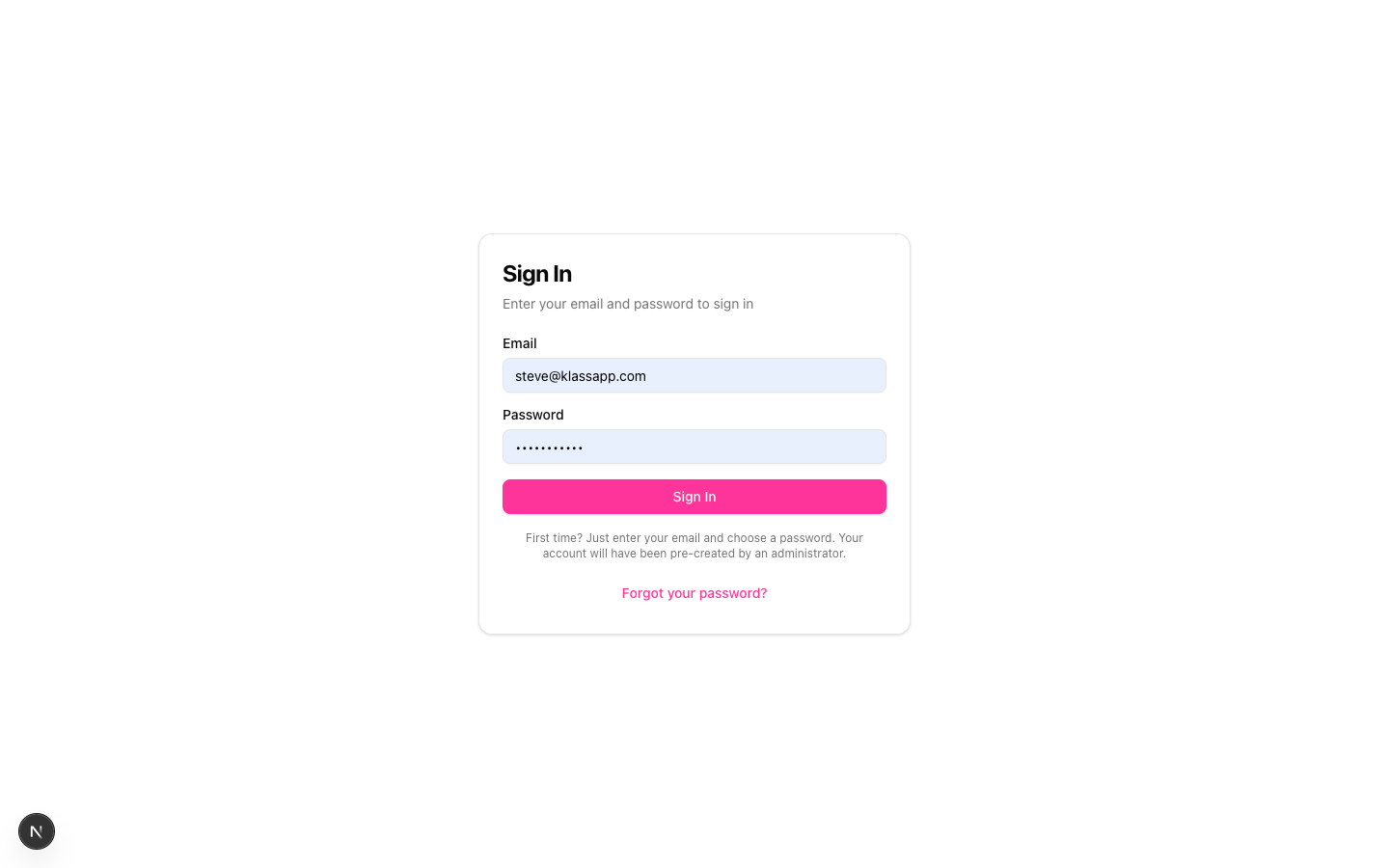
Supportomation uses a secure authentication system. To log in:
- Navigate to support.edular.com
- Enter your email address and password
- You’ll be taken to the Dashboard
If you don’t have an account, contact your team administrator to receive an invitation.
Your Profile
Preferred Language
Supportomation supports multiple languages. You can set your preferred locale in your profile:
- English (en)
- Spanish - Mexico (es-MX)
- Hindi (hi)
- Ukrainian (uk)
- Vietnamese (vi)
Your language preference affects all interface text, date formatting, and the spell-check language in the rich text editor.
Notification Preferences
You can configure how you receive notifications for different events:
| Event | Discord | |
|---|---|---|
| Ticket assigned to you | Yes/No | Yes/No |
| Client replies to your ticket | Yes/No | Yes/No |
| Ticket completed | Yes/No | Yes/No |
| Ticket reopened | Yes/No | Yes/No |
| Weekly summary | Yes/No | — |
To update your notification preferences, click your profile icon and select notification settings.
Dark Mode
Toggle between light and dark mode using the sun/moon icon in the top-right corner of the header. Your preference is saved automatically and persists across sessions.
Next Steps
- Dashboard — Learn about your home screen
- Notifications — How in-app notifications work
Last updated on