Client Management
The Clients page is where you manage the organizations you provide support to. Each client record stores the organization’s contact information, branding, and email settings that Supportomation uses to route and display tickets.
Role Access Admin can add, edit, and delete clients. Lead and Member can view the client list.
Getting There
- Click Clients in the sidebar
- The client list is the default view on this page
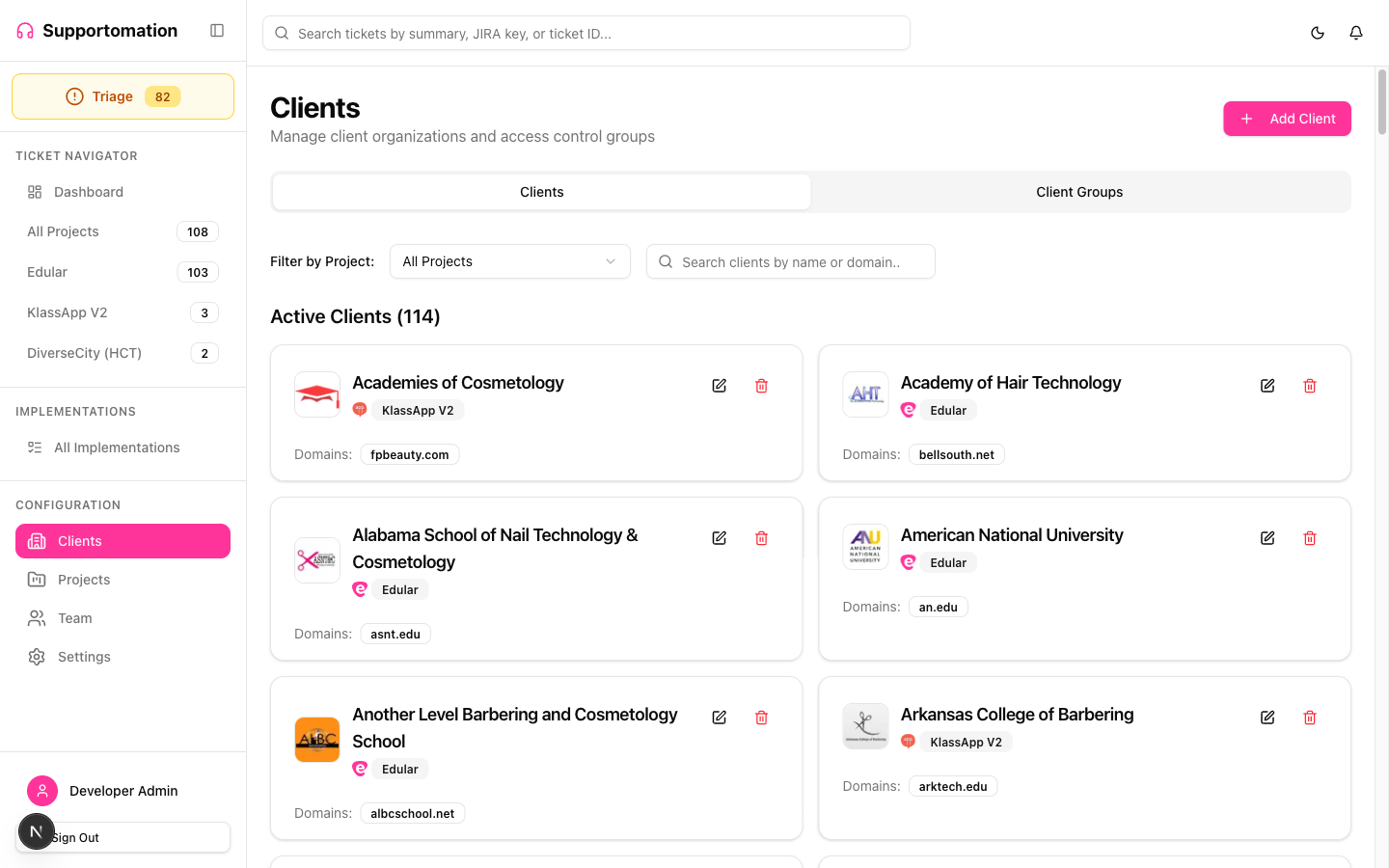
Client List
The Clients page shows all registered client organizations. Each entry displays:
| Field | Description |
|---|---|
| Name | Organization name, shown on ticket cards and throughout the UI |
| Primary contact email for the organization | |
| Logo | Organization logo, displayed on ticket cards for quick visual identification |
| Tickets | Count of tickets associated with this client (clickable) |
Adding a Client
- Click the Add Client button at the top of the client list
- Fill in the required fields: Name and Email
- Optionally upload a Logo for visual branding on ticket cards
- Configure any additional settings (see sections below)
- Click Save
Once created, incoming emails from the client’s associated domain are automatically routed to the correct project and linked to this client record.
Editing a Client
- Click on a client in the list to open their details
- Update any fields as needed
- Click Save
Changes to the client name or logo are reflected immediately across all existing tickets.
Client Branding
Each client can have a logo uploaded to their profile. The logo appears on:
- Ticket cards in the ticket list
- Ticket detail pages
- Dashboard recent tickets
This makes it easy to visually identify which client a ticket belongs to at a glance, especially when browsing a list with tickets from multiple clients.
Email Domain Association
Clients are linked to projects through email domains. When an incoming email arrives, Supportomation extracts the sender’s email domain and matches it against configured projects to determine which client the email belongs to.
- Email domains are configured on the Projects page, not the client record itself
- A client can be associated with multiple projects (each with their own email domains)
- If an email arrives from an unrecognized domain, the ticket lands in Triage for manual client assignment
Always Hold Addresses
Some client email addresses come from automated systems (monitoring tools, newsletter services, build notification systems) that should not generate AI-classified tickets. The Always Hold Addresses setting lets you handle these:
- Open the client’s edit form
- In the Always Hold Addresses section, add email addresses that should bypass AI analysis
- Click Save
When an email arrives from an Always Hold address:
- AI analysis is skipped entirely
- The ticket is created with an On Hold status
- The ticket appears in the Triage On Hold tab for manual review
- The
isAlwaysHoldSenderflag is set on the ticket
This prevents automated emails from consuming AI processing and generating false classifications. A team member can review the on-hold ticket and take appropriate action.
Viewing a Client’s Tickets
Click on the ticket count next to a client to navigate directly to the Ticket List filtered to that client’s tickets. A teal banner at the top of the list indicates which client’s tickets you are viewing, with a Clear Filter option to return to the full list.
This is useful for reviewing all activity from a specific client or preparing for a client meeting.
Tips & Troubleshooting
| Issue | Solution |
|---|---|
| Cannot add or edit clients | Only Admins can manage clients. Check your role on the Roles & Permissions page. |
| Emails from a client landing in Triage | The sender’s email domain is not mapped to a project. Configure the domain on the Projects page. |
| Automated emails generating AI tickets | Add the automated sender address to the client’s Always Hold Addresses list. Future emails from that address will skip AI and go to On Hold. |
| Client logo not appearing | Ensure the uploaded image is a supported format (PNG, JPG). Try re-uploading if the logo does not display. |
| Tickets showing wrong client | Check the email domain mapping on the Projects page. If multiple clients share a domain, the mapping may need adjustment. |
Next Steps
- Client Groups — Control which team members can see this client’s tickets
- Triage — Handle tickets from unknown clients
- Ticket List & Filtering — Browse tickets filtered by client
- Team Members — Assign team members to client groups for access control