Attachments & Rich Text Editor
Supportomation provides a rich text editor for composing replies and notes, with full support for file attachments, image paste, and video uploads.
Role Access Admin and Lead can compose replies and attach files. Member can view attachments and formatted content.
Rich Text Editor
The TipTap-based editor appears when composing replies or editing assignment notes. It supports:
Formatting Options
- Bold, italic, and other text formatting
- Ordered and unordered lists
- Links (click to insert URL)
- Block quotes
Spell Check
The editor includes built-in spell check that respects your preferred locale setting. If your locale is set to Spanish (es-MX), spell check will use Spanish dictionaries.
Attachments
Supported File Types
- Images: PNG, JPG, GIF, WebP
- Documents: PDF, Word, Excel, text files
- Video: MP4 and other video formats (up to 50MB)
How to Attach Files
There are several ways to add attachments:
| Method | Description |
|---|---|
| Upload button | Click the attachment icon in the editor toolbar to browse and select files |
| Clipboard paste | Copy an image and paste directly into the editor (Ctrl/Cmd+V) |
| Drag and drop | Drag files from your desktop into the editor area |
Viewing Attachments
- Images display inline in the conversation and can be clicked to open in a lightbox viewer
- Documents show as download links — click to download
- Videos can be played directly in the browser
Large Attachments
Files larger than 5 MB are handled via streaming upload to bypass Convex’s action argument size limit. The upload process shows a progress indicator.
Storage Options
Your admin configures where attachments are stored:
| Option | Description |
|---|---|
| Convex Storage | Built-in storage (default). No additional setup required. |
| S3 / R2 | External cloud storage via Amazon S3 or Cloudflare R2. Requires access keys in Settings. |
Dark Mode
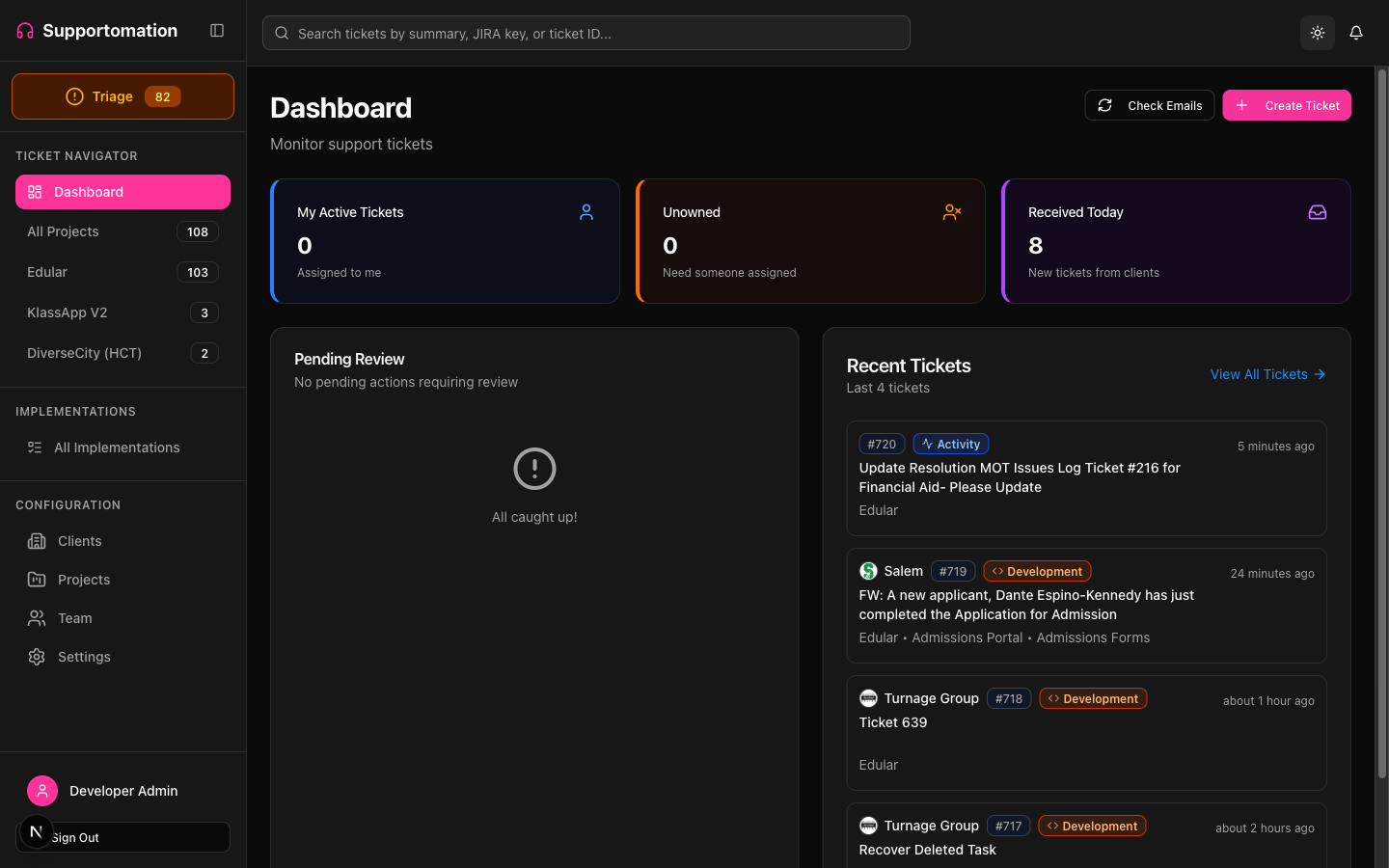
Toggle between light and dark mode using the sun/moon icon in the top-right corner of the header.
- Your preference is saved automatically
- Persists across sessions
- All UI elements support dark mode, including the editor, lightbox, and all pages
Tips & Troubleshooting
| Issue | Solution |
|---|---|
| Images not displaying | Check storage configuration in Settings |
| Paste not working | Ensure clipboard contains an image, not a file reference |
| Large file upload failing | Check your storage provider configuration and available space |
| Spell check wrong language | Update your preferred locale in your profile |
| Dark mode not applying to some elements | Try refreshing the page |
Next Steps
- Ticket Detail — Where you compose replies with attachments
- Settings — Configure storage provider
- Logging In & Profile — Set your locale and theme preference