Search
The search feature lets you find tickets quickly by matching against ticket subjects, original email content, and AI-generated summaries. Search is always accessible from the sidebar and respects your current project context.
Role Access Admin, Lead, and Member can all use search.
Getting There
- Type in the Search field at the top of the sidebar
- Results appear instantly as you type
What Gets Searched
Search runs across every ticket you have access to:
| Field | Example Match | How it is matched |
|---|---|---|
| Ticket subject | ”Login page broken after update” | Full-text, relevance-ranked |
| AI summary | The one-line summary generated during email analysis | Full-text, relevance-ranked |
| Email content | Body text from the original client email | Scanned for the term |
| Ticket number | #2850 or 2850 | Exact lookup |
| JIRA key | PROJ-123 | Exact lookup |
A ticket appears in results if any of these match.
Relevance Beats Recency
Subjects and AI summaries are covered by full-text indexes, so the best matches are found directly rather than by paging backwards through the newest tickets. A word that only appears on a ticket from months ago now surfaces on the first page instead of sitting behind repeated Load more.
Exact Lookups Are Pinned
Type a ticket number or a JIRA key and that exact ticket is resolved through its own index and pinned to the top of the first page — no paging required, however old it is.
Triage Is Searchable
Browsing “All” still hides Triage, because Triage has its own view. Search does not: a search is a lookup for a ticket you know exists, so tickets sitting in Triage — staff forwards, unknown domains — are returned like any other.
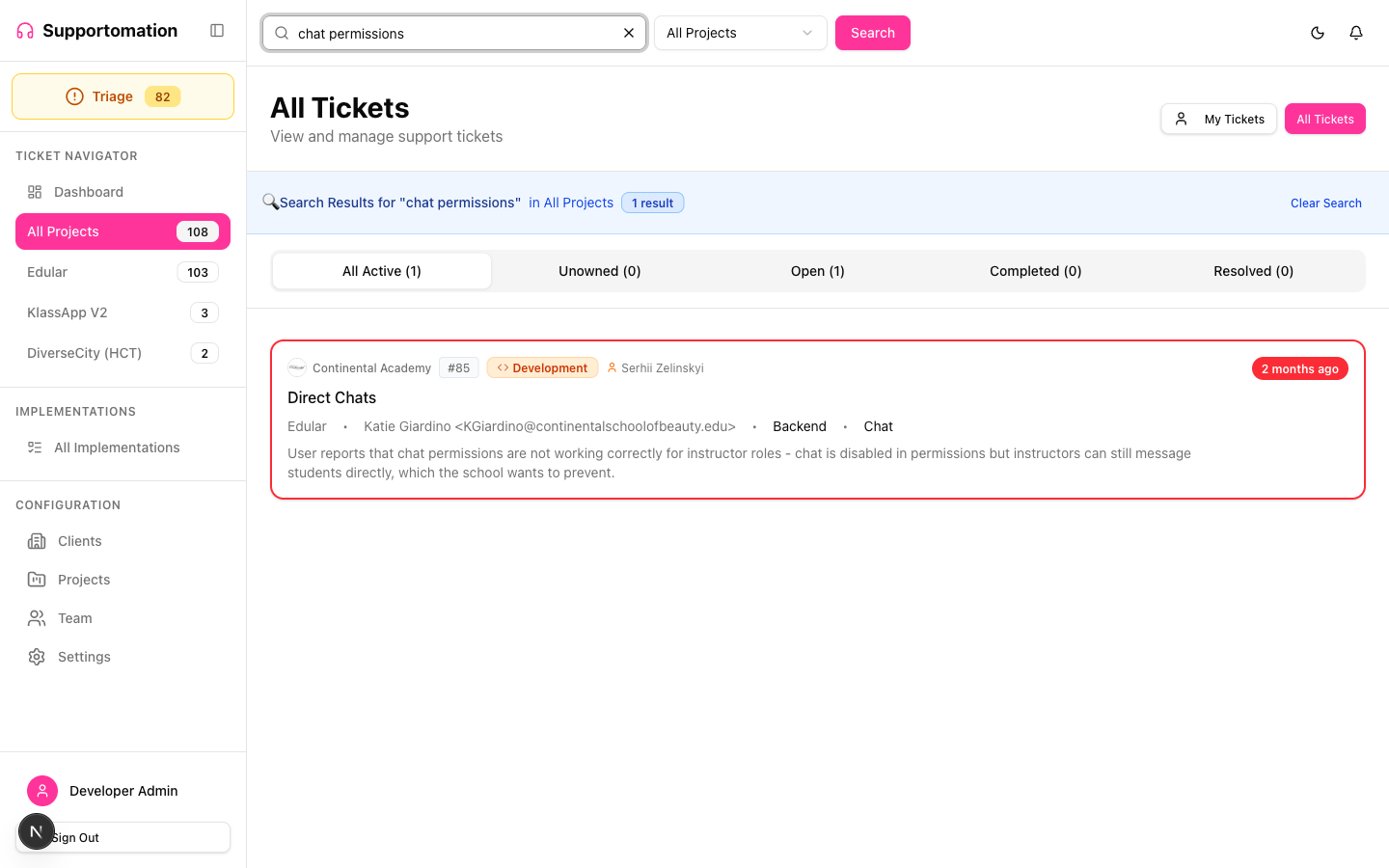
Search Results
When your search returns matches, the ticket list updates to show only matching tickets. A blue banner appears at the top of the list showing:
- The number of results found (e.g., “3 results for ‘calendar’”)
- A Clear Search button to remove the search and return to the normal view
Ticket cards in search results display the same information as the standard ticket list, including client name, type badge, assigned person, and AI summary.
Project-Scoped vs All-Project Search
Search behavior depends on your current sidebar selection:
| Sidebar Selection | Search Scope |
|---|---|
| Specific project | Searches only tickets in that project |
| Triage | Searches only triage tickets |
| All | Searches across every project you have access to, Triage included |
| A client filter is active | Searches that client’s tickets through the client index, which finds older matches far more reliably |
The “Elsewhere” Indicator
When you search within a specific project or triage view, results may also exist in other projects. If so, a link appears below the result count:
“Results found elsewhere — View all tickets”
Clicking this link switches to the All view and re-runs your search across every project, so you can see the full set of matching tickets.
Tips & Troubleshooting
| Issue | Solution |
|---|---|
| No results found | Try shorter or more general search terms. Search matches partial words. |
| Missing tickets you expect to find | Check your sidebar project filter — you may be scoped to a single project. Use the “View all tickets” link or switch to “All” in the sidebar. |
| Search doesn’t match attachment content | Search covers subjects, email body text, AI summaries, ticket numbers and JIRA keys. Attachment file names and contents are not indexed. |
| An old ticket still seems hard to find by a body word | Only subjects and AI summaries are full-text indexed. Body matches are found by scanning, which is capped to protect the read budget — search the subject wording, the ticket number or the JIRA key instead. |
| Results disappear after navigating back | Re-enter your search term in the sidebar. Search does not persist across page navigation. |
Next Steps
- Ticket List & Filtering — Browse and filter tickets with tabs and banners
- Ticket Detail — Open a search result to view its full detail
- Linked Tickets — Link a ticket you found to the one it belongs with
- Triage — Search within the triage queue for unassigned tickets