Dashboard
The Dashboard is the first screen you see after logging in. It gives you an at-a-glance overview of your support workload and highlights items that need attention.
Role Access Admin, Lead, and Member can all view the Dashboard. Action buttons (Check Emails, Create Ticket) are available to Admin and Lead.
Getting There
- Click Dashboard in the sidebar
- Navigate to the root URL
/
The Dashboard respects your current project filter in the sidebar. Select a specific project to see stats for just that project, or “All” for everything.
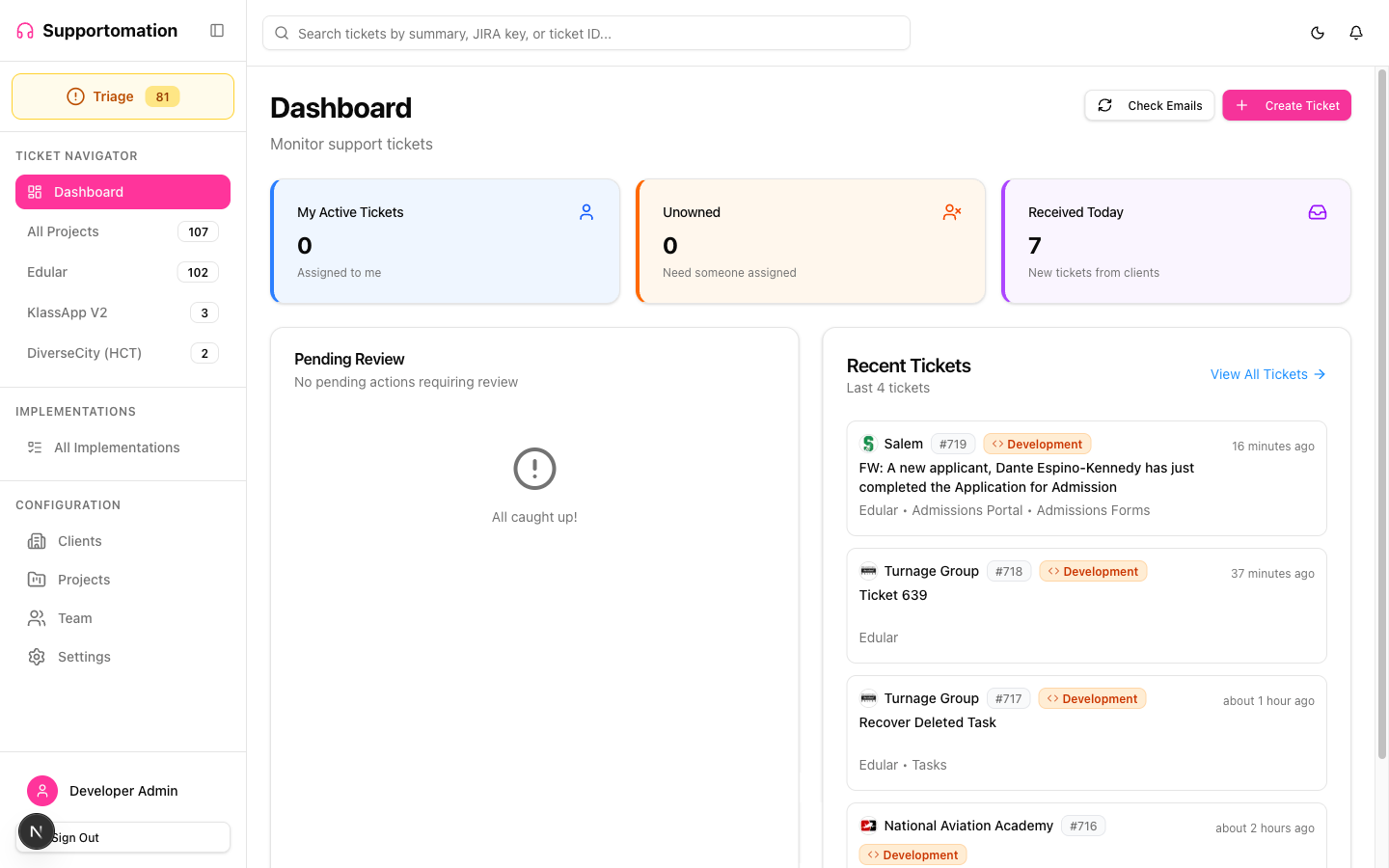
Stats Cards
The top of the Dashboard shows summary cards. The cards displayed depend on your role and current data:
| Card | Shows When | Description |
|---|---|---|
| My Active Tickets | You have a support member profile | Count of open tickets assigned to you. Click to view them. |
| My Overdue Tickets | You have overdue tickets | Tickets that have exceeded the aged threshold. Shown in red. |
| Unowned | Always | Tickets with no one assigned. Shown in amber. |
| Received Today | Always | New tickets that arrived today from clients. |
Click any stats card to jump directly to the relevant filtered ticket list.
Quick Actions
Two action buttons appear in the top-right corner:
Check Emails
Click Check Emails to manually trigger an email poll across all projects. Normally, emails are polled automatically every 10 minutes, but this button lets you check immediately.
A toast notification tells you how many new emails were processed (or “No new emails found”).
Create Ticket
Click Create Ticket to manually create a new support ticket. This opens a modal where you can enter the ticket details directly, without an incoming email.
Pending Actions
The left column shows Pending Actions — tickets that need human attention:
- Tickets flagged by AI as needing review (medium or low confidence)
- Tickets requiring assignment
- Tickets with pending clarification
Click any pending action to go directly to that ticket’s detail page.
Recent Tickets
The right column shows the most recent tickets across your accessible projects, giving you a quick view of incoming activity.
Each ticket card shows:
- Ticket number and subject
- Client name
- Type badge (Activity or Development)
- Status
- When it was received
Click any ticket to open its detail page.
Next Steps
- Ticket List — Browse and filter all tickets
- Ticket Detail — Working with individual tickets
- Triage — Handling unassigned tickets