Settings
The Settings page is the central place to configure how Supportomation processes emails, communicates with external services, and manages system-wide behavior. All settings are stored in the system config table and take effect immediately when saved.
Role Access Admin only. The Settings page is not visible to Lead or Member roles, and the server rejects a settings change from anyone who is not an Admin — hiding the page is not the only thing standing in the way. If you need a setting changed and do not have Admin access, ask an Admin on your team.
Getting There
- Click Settings in the sidebar (visible only to Admin users)
- Navigate to
/settings
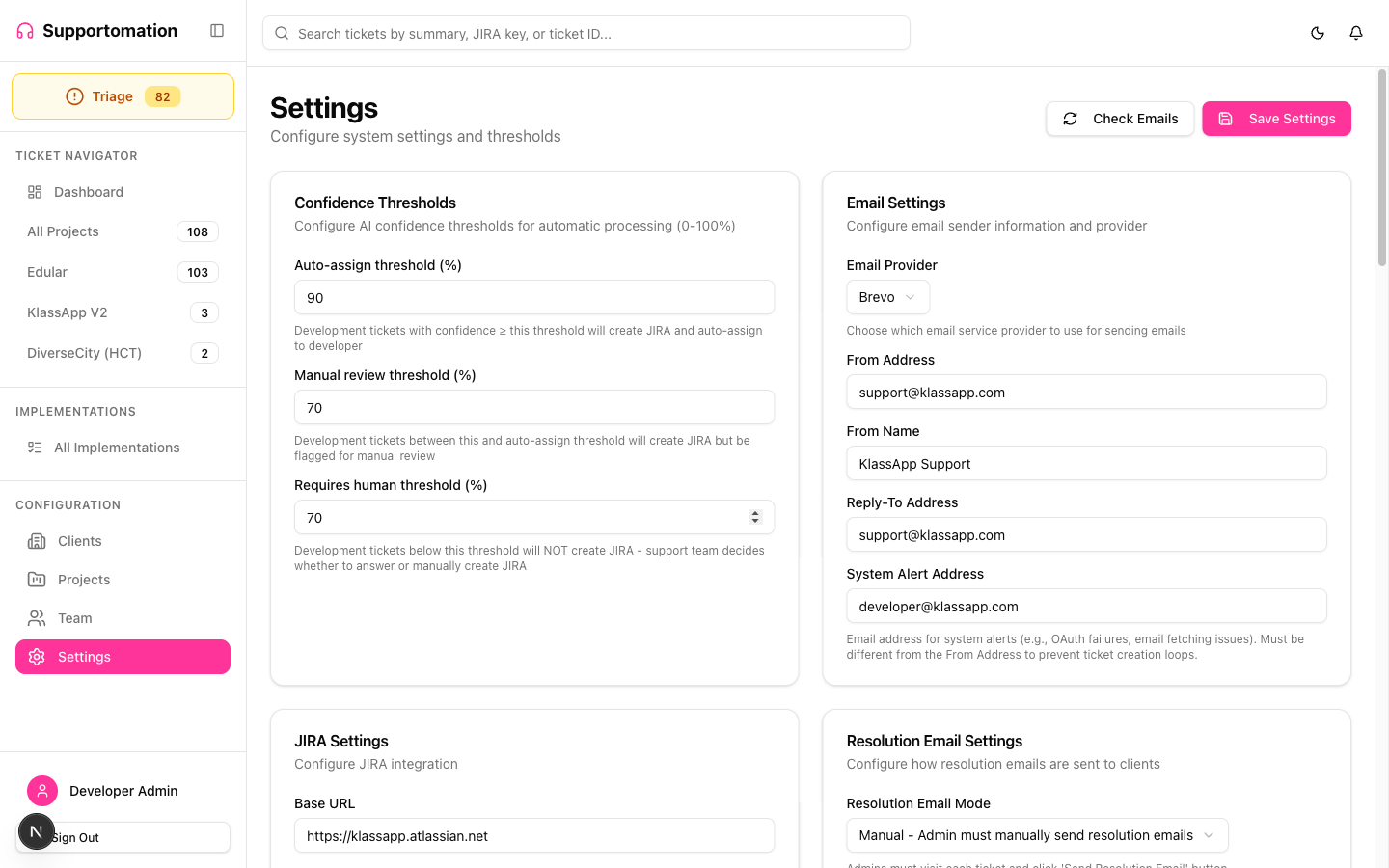
The Settings page is organized into sections. Each section can be expanded and configured independently.
AI Confidence Thresholds
These thresholds control how Supportomation handles tickets based on the AI’s confidence in its classification. When an email is analyzed, the AI returns a confidence score that determines the level of automation applied.
| Threshold | Score Range | Behavior |
|---|---|---|
| High confidence | 90% and above | JIRA ticket is created automatically and a developer is assigned based on responsibility matching. No human review required. |
| Medium confidence | 70% to 89% | JIRA ticket is created but the ticket is flagged for human review. A pending action appears on the Dashboard. |
| Low confidence | Below 70% | No JIRA ticket is created. The ticket requires a human to review the classification and decide on next steps. |
These thresholds apply only to Development tickets. Activity (question) tickets never create JIRA issues regardless of confidence.
Adjusting these values changes the balance between automation and human oversight:
- Raising the high-confidence threshold means more tickets require human review before JIRA tickets are created
- Lowering the medium-confidence threshold means fewer tickets need manual attention but increases the risk of misclassification
Email Configuration
Configure which email provider Supportomation uses to send outbound emails (confirmation messages, resolution notifications, weekly summaries).
| Setting | Description |
|---|---|
| Email Provider | Choose between Mailgun and Brevo as the outbound email service |
| From Address | The address outbound email is sent from |
| From Name | The display name shown to recipients |
| Reply-To Address | Where client replies are delivered — this is the mailbox Supportomation polls |
| System Alert Address | Where system alerts (OAuth failures and similar) are sent. Must differ from the From Address |
Provider API keys are not set here. Credentials live in Convex environment variables (MAILGUN_API_KEY / MAILGUN_DOMAIN, or the Brevo equivalents), not in this page. Changing the provider in Settings without the matching environment variables in place will stop outbound email.
Inbound emails are handled by Gmail OAuth at the project level (see Project Setup). This section controls only outbound sending.
After changing the email provider, send a test email to verify the configuration before relying on it for production notifications.
JIRA Settings
Global JIRA connection settings that apply to all projects. Individual projects specify their own JIRA project key, but the connection credentials are shared.
| Setting | Description |
|---|---|
| Base URL | Your JIRA Cloud instance URL (e.g., https://yourcompany.atlassian.net) |
| Default Issue Type | The issue type new JIRA tickets are raised as (e.g., Task) |
JIRA credentials are not set here. The service account email and API token are Convex environment variables (JIRA_EMAIL, JIRA_API_TOKEN, JIRA_BASE_URL), not fields on this page.
These credentials are used for all JIRA operations: creating tickets, syncing assignees, updating statuses, linking issues, and searching. Ensure the service account has sufficient permissions in every JIRA project referenced by your Supportomation projects.
To generate a JIRA API token:
- Log in to Atlassian Account Settings
- Click Create API token
- Give it a descriptive label (e.g., “Supportomation”)
- Store it as the
JIRA_API_TOKENenvironment variable in the Convex dashboard
Resolution Emails
Control how Supportomation notifies clients when their development tickets are resolved in JIRA.
| Setting | Description |
|---|---|
| Mode | Automatic — resolution emails are sent as soon as the JIRA status changes to a resolved status. Manual — an Admin or Lead must send the resolution email from the ticket detail page. |
| Resolved Statuses | Which JIRA statuses trigger resolution. Configure the list of status names that Supportomation treats as “resolved” (e.g., “Done”, “Closed”, “Released”). |
Resolution emails are sent only for Development tickets with active JIRA tracking (jiraTracking: "active"). Activity tickets and tickets without JIRA issues are not affected.
Automatic mode is best for teams that want zero-touch client communication once JIRA work is complete. Manual mode gives the support team a chance to review the resolution and add context before the client is notified.
Triage Settings
Configure the aged ticket threshold that determines when open tickets are flagged as overdue.
| Setting | Description | Default |
|---|---|---|
| Aged Ticket Threshold | Number of days a ticket can remain open before being flagged as overdue | 7 days |
| Triage Logo | Logo shown on emails for tickets from unknown domains, which have no client branding to use | None |
Overdue tickets receive visual indicators (red border, red age text) in the ticket list and Triage view. Supportomation runs a daily check and sends notifications to relevant team members when tickets cross this threshold.
A shorter threshold surfaces issues faster but may create noise for teams that handle tickets with longer resolution cycles. A longer threshold reduces urgency alerts but risks letting tickets sit unattended.
Spam Detection
AI-powered spam detection analyzes incoming emails and assigns a spam confidence score. Detected spam is separated from legitimate tickets to keep your queues clean.
| Setting | Description | Default |
|---|---|---|
| Enabled | Toggle spam detection on or off | Enabled |
| Confidence Threshold | The minimum spam confidence score (0-100%) at which an email is flagged as spam | Varies by configuration |
When spam detection is enabled, every incoming email is evaluated. Emails scoring at or above the threshold are automatically flagged as spam and appear in the Triage Spam tab rather than the regular ticket queue.
Spam detection also learns from manual reports. When a team member marks a ticket as spam, the sender’s email address, domain, subject patterns, and body keywords are stored as spam patterns to improve future detection accuracy.
Lowering the threshold catches more spam but increases the risk of false positives (legitimate emails flagged as spam). Raising the threshold lets more borderline spam through but reduces false positives.
Storage Configuration
Choose where Supportomation stores file attachments (images, documents, videos uploaded in ticket conversations and implementation tasks).
| Option | Description |
|---|---|
| Convex (built-in) | Files are stored in Convex’s built-in storage. No additional configuration required. Suitable for most teams. |
| S3/R2 (external) | Files are stored in an Amazon S3 bucket or Cloudflare R2 bucket. Requires access keys. Suitable for teams with specific compliance, storage volume, or infrastructure requirements. |
S3/R2 Configuration
When using external storage, provide the following:
| Setting | Description |
|---|---|
| Endpoint URL | Custom endpoint URL (required for R2, optional for S3) |
| Bucket Name | The name of the storage bucket |
| Region | The AWS region (for S3), or auto for R2 |
| Public URL | Public URL base for direct file access (e.g. a pub-xxx.r2.dev domain). Recommended |
Use Test Connection to confirm the settings work before saving them.
Access keys are not set here. S3_ACCESS_KEY_ID and S3_SECRET_ACCESS_KEY are Convex environment variables. Only the non-sensitive settings above live in this page.
Changing the storage provider does not migrate existing files. Files uploaded before the change remain accessible in their original storage location. Only new uploads use the updated provider.
Linked Tickets
Controls how linked tickets are raised automatically. All five settings are Admin-only.
| Setting | Description | Default |
|---|---|---|
| Auto-link follow-ups to resolved tickets | When a client writes back about a ticket that is already resolved, raise a new ticket linked to it and notify the assignee, instead of adding the mail to the closed thread | On |
| Suggest possible links | Show a dismissible “possible link to #118” banner on new tickets that closely match a recent ticket from the same client | On |
| Match Threshold (%) | How close the match must be before a suggestion is raised | 75% |
| Look Back (days) | Ignore tickets older than this when suggesting | 30 |
| Max Suggestions | How many suggestions one ticket may carry | 3 |
Suggestions never link anything on their own — a person always decides. Turning Suggest possible links off hides the banner without affecting links already made.
Replies to tickets that are still open are unaffected by the auto-link setting: they are appended to the ticket’s conversation as always.
Team Notifications
| Setting | Description |
|---|---|
| Mute All Team Notifications | Suppresses every team notification — email and Discord — while client-facing emails (confirmations, resolutions) continue to go out. Intended for testing |
Muting is system-wide and overrides individual members’ preferences. Both toggling it and un-toggling it ask for confirmation first.
Notification Settings
System-level notification defaults that apply across Supportomation. Individual team members can override some of these preferences in their own profile.
Notification channels include:
| Channel | Description |
|---|---|
| Outbound email notifications for ticket events (new assignment, client reply, resolution, reopened ticket, weekly summary) | |
| Discord | Bot messages posted to configured Discord channels with ticket details and JIRA links |
| In-App | Bell icon notifications within the Supportomation UI |
System-level settings control which event types generate notifications by default. Team members can then opt in or out of specific notification types (e.g., email on ticket reopened, Discord on new assignment) through their own notification preferences.
Tips & Troubleshooting
| Issue | Solution |
|---|---|
| JIRA tickets not being created | Verify the Base URL here and the JIRA_EMAIL / JIRA_API_TOKEN environment variables in the Convex dashboard. Test by clicking any “Create JIRA Ticket” button on a ticket detail page and checking the error message. |
| A Development ticket in Triage has no JIRA issue | Expected. A ticket with no matched client never raises JIRA automatically — assign the client first, then create the issue from the ticket detail page. |
| Resolution emails not sending in automatic mode | Confirm the JIRA status that triggered the webhook matches one of the configured Resolved Statuses exactly (case-sensitive). Also ensure the ticket has jiraTracking: "active". |
| Too many tickets flagged for human review | Lower the high-confidence threshold (e.g., from 90% to 85%) to allow more tickets to be fully automated. Monitor accuracy for a week before making further adjustments. |
| Too much spam getting through | Lower the Spam Confidence Threshold to catch more spam. Review the Triage Spam tab regularly and mark missed spam to train the pattern detection. |
| Legitimate emails flagged as spam | Raise the Spam Confidence Threshold. Restore incorrectly flagged tickets from the Triage Spam tab. Over time, pattern learning adjusts to reduce false positives. |
| Outbound emails not arriving | Check the Email Configuration section, then verify the provider’s API key environment variables in the Convex dashboard. Check the provider’s dashboard for delivery errors or bounces. |
| Attachments failing to upload | If using S3/R2, click Test Connection, then verify the S3_ACCESS_KEY_ID / S3_SECRET_ACCESS_KEY environment variables, the bucket name and the endpoint URL. Ensure the bucket policy allows uploads from the Supportomation backend. If using Convex storage, check that you have not exceeded storage limits. |
| Changed storage provider but old files are missing | Old files remain in the original storage location. Changing the provider only affects new uploads. Both storage backends continue to serve their respective files. |
| Overdue notifications too frequent | Increase the Aged Threshold in Triage Settings. The default of 7 days works for most teams, but longer cycles may need 14 or 21 days. |
| Too many possible-link suggestions | Raise the Match Threshold, shorten the Look Back window, or lower Max Suggestions in the Linked Tickets section. |
| Follow-ups to closed tickets are raising new tickets | That is Auto-link follow-ups to resolved tickets. Turn it off to have those replies appended to the resolved ticket’s conversation instead. |
| Weekly summary emails not arriving | Team members must opt in via their notification preferences (emailWeeklySummary). Summaries are sent Monday mornings at 9 AM EST. Verify the email provider configuration is working for other outbound emails first. |
Next Steps
- Project Setup — Configure individual projects with email domains and JIRA keys
- Triage — See how triage settings affect the aged ticket workflow
- JIRA Integration — How JIRA credentials are used for ticket creation and sync
- Ticket Types — How AI confidence thresholds affect ticket classification
- Linked Tickets — What the auto-link and suggestion settings control