Workload
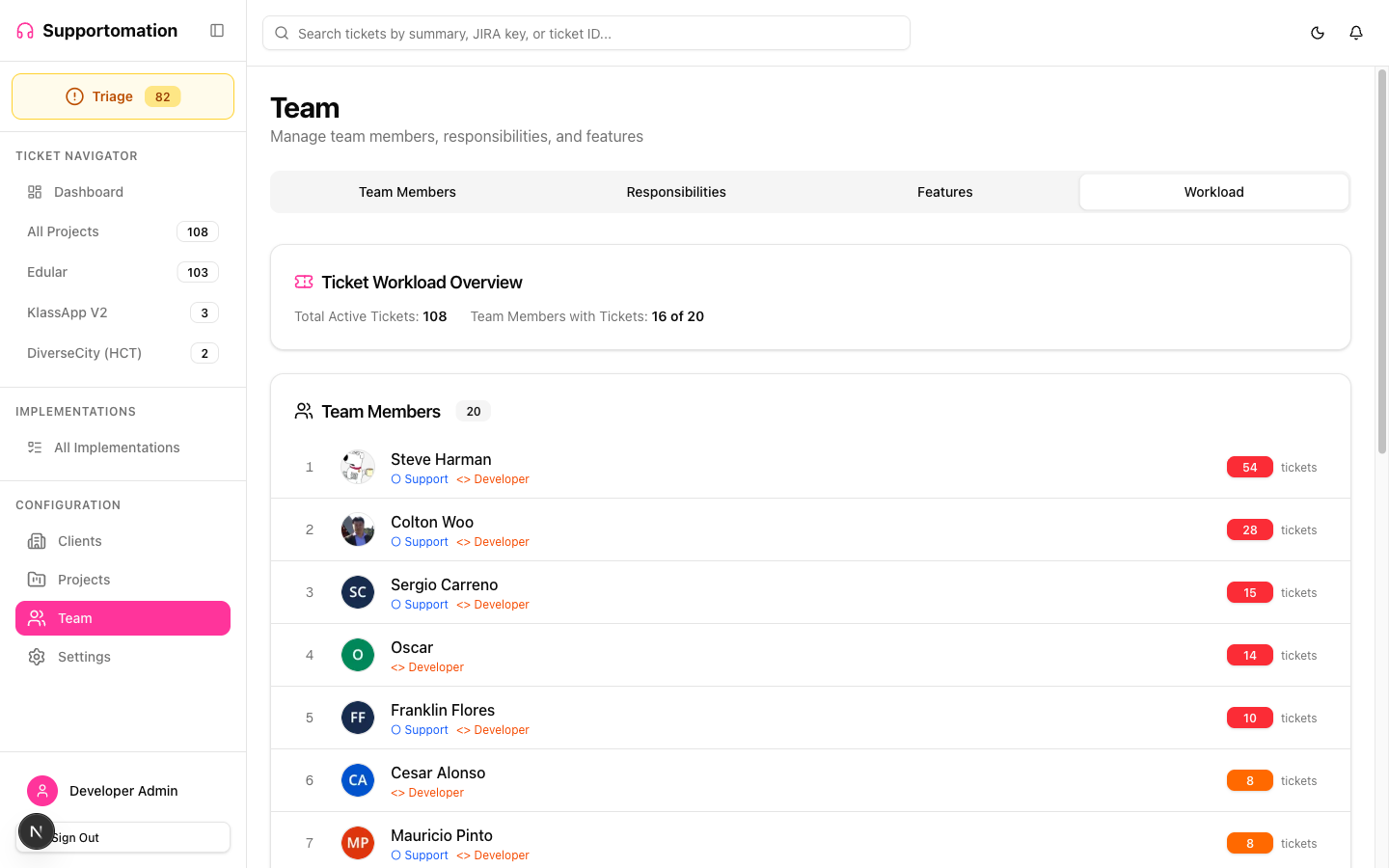
The Workload tab gives you a quick view of how tickets are distributed across your team. It shows ticket counts per team member so you can identify who is overloaded, who has capacity, and where work needs to be rebalanced.
Role Access Admin, Lead, and Member can all view the Workload tab.
Getting There
- Click Team in the sidebar
- Select the Workload tab
What the Workload Tab Shows
The Workload tab displays a table of active team members with their current ticket counts:
| Column | Description |
|---|---|
| Name | Team member name |
| Active Tickets | Number of open tickets currently assigned to this member (as support contact or developer, depending on their capabilities) |
Counts include all open tickets across projects that the member is assigned to. Resolved and completed tickets are not included.
Using Workload to Balance Work
The Workload view helps you make assignment decisions:
- Identify overloaded members — If one person has significantly more tickets than others, consider reassigning some of their tickets
- Find available capacity — Members with low counts may be able to take on new tickets
- Spot bottlenecks — If a specific team member’s count keeps climbing, there may be a staffing or routing issue to address
Navigating to a Member’s Tickets
Click on a team member’s ticket count to jump directly to the Ticket List filtered to that person’s assigned tickets. This lets you see exactly which tickets they are working on and take action if needed.
The filtered view shows an indigo banner indicating whose tickets you are viewing, with a Clear Filter option to return to the full list.
Tips & Troubleshooting
| Issue | Solution |
|---|---|
| A team member shows zero tickets but should have some | Check that the member is active and assigned to the correct Client Groups. Tickets outside their group access are not counted. |
| Archived members not appearing | Archived members are hidden from all views, including Workload. Unarchive them first if you need to see their data. |
| Counts seem wrong | Workload shows open tickets only. Completed and resolved tickets are excluded. Check whether recently closed tickets are affecting your expectations. |
Next Steps
- Team Members — Edit assignments and capabilities for individual members
- Ticket List & Filtering — Browse the full ticket list with filters
- Triage — Reassign unowned tickets to balance the workload