Ticket List & Filtering
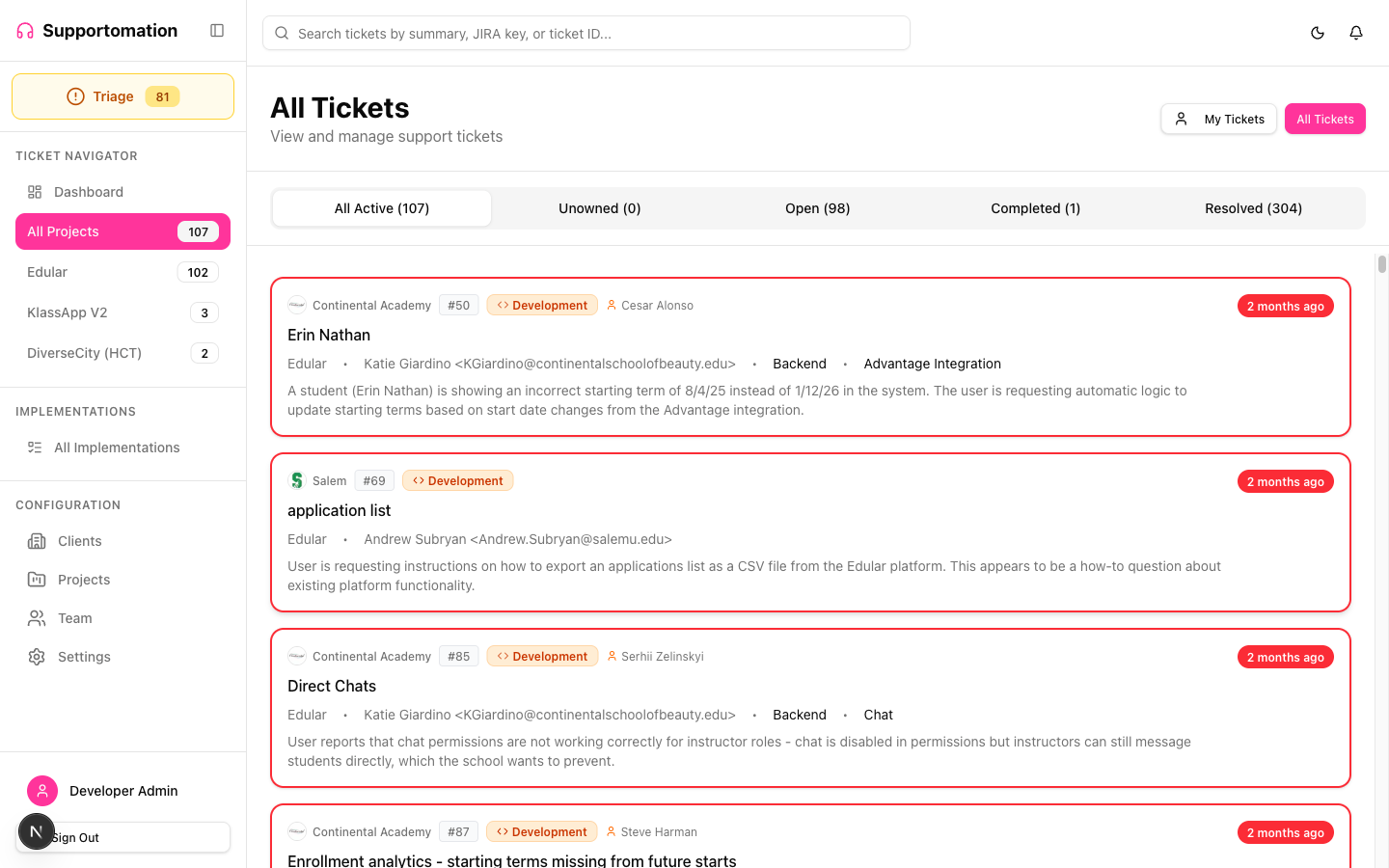
The Ticket List is where you browse and manage all support tickets. It provides multiple tabs for filtering by status, a My Tickets / All Tickets toggle, and integrates with the sidebar project filter.
Role Access Admin, Lead, and Member can view the ticket list. Admin and Lead can claim, release, and manage tickets.
Getting There
- Click Tickets in the sidebar (under a specific project or “All”)
- Click the Triage item in the sidebar for the triage view
- Click stats cards on the Dashboard to jump to filtered views
View Modes
At the top-right of the ticket list, toggle between:
- My Tickets — Shows only tickets assigned to you as the support member
- All Tickets — Shows all tickets you have access to
This toggle is hidden when viewing Triage or when filtering by a specific team member.
Tabs (Standard View)
When viewing a project or “All” tickets, five tabs organize tickets by status:
| Tab | What It Shows |
|---|---|
| All Active | All tickets that haven’t been resolved (default tab) |
| Unowned | Tickets with no support member AND no developer assigned, excluding on-hold and resolved tickets |
| Open | Tickets claimed by a support member but not yet completed |
| Completed | Development tickets whose JIRA status is in a resolution status (e.g., “Done”), or question tickets marked resolved — but resolution email not yet sent |
| Resolved | Tickets where the resolution email has been sent to the client |
Each tab shows a count of matching tickets.
Tabs (Triage View)
When the sidebar is set to Triage, a different set of tabs appears:
| Tab | What It Shows |
|---|---|
| Unowned | Tickets with no one assigned |
| On Hold | Tickets on hold (e.g., forwarded emails awaiting edit). Only appears when there are on-hold tickets. |
| Open | Triage tickets that have been claimed |
| Spam | Tickets flagged as spam |
Triage automatically selects the Unowned tab if it has tickets, otherwise falls back to Open.
Ticket Cards
Each ticket in the list shows:
- Client logo and name (or “Internal” for internal tickets)
- Ticket number (e.g.,
#42) - Type badge: Blue Activity or Orange Development
- Assigned person (support member for Activity, developer for Development)
- Internal badge (purple) if it’s an internal ticket
- Subject line
- Project name, client email, responsibility, and feature area
- AI summary (truncated to two lines)
- Age indicator — shows how long ago the ticket was created, with overdue tickets highlighted in red
Overdue Tickets
Tickets older than the configured threshold (default: 7 days) that haven’t been resolved appear with a red border and are sorted to the top of the list. Overdue tickets within the overdue group are sorted oldest-first (most urgent at top).
Quick Actions on Tickets
From the ticket list, you can:
- Claim an unowned ticket — assigns you as the support member (with confirmation dialog)
- Release a ticket you own — removes your assignment and returns it to the unowned pool
These actions appear as buttons on each ticket card (Admin and Lead only).
Filters
Project Filter
The sidebar controls which project’s tickets you see:
- All — Tickets from all projects
- Triage — Tickets needing attention (unassigned, overdue, unknown client)
- Specific project — Only tickets for that project
Date & Status Filters
Special filters appear as colored banners at the top of the list:
| Filter | Banner Color | Description |
|---|---|---|
| Received Today | Purple | Tickets created today |
| Assigned Today | Green | Tickets assigned to a developer today |
| Pending Action | Orange | Tickets that need human review |
| Overdue | Red | Tickets older than the aged threshold |
Click Clear Filter on the banner to remove the filter.
Team Member Filter
When navigating from the Team page by clicking a team member’s ticket count, the list filters to tickets assigned to that specific person. An indigo banner shows whose tickets you’re viewing.
Client Filter
When navigating from the Clients page, the list filters to tickets from a specific client. A teal banner shows which client’s tickets you’re viewing.
Search
Use the search bar in the sidebar to search across ticket subjects, email content, and AI summaries. Results show a blue banner with the result count and a Clear Search button.
If results exist in other projects outside your current view, a link to “View all tickets” appears.
Next Steps
- Ticket Detail — Working with individual tickets
- Search — Advanced search features
- Ticket Types — Activity vs Development explained
- Triage — The triage workflow